

Budgets
Budgets help you set spending limits for different categories and track how well you’re sticking to them throughout the month.How Budgets Work
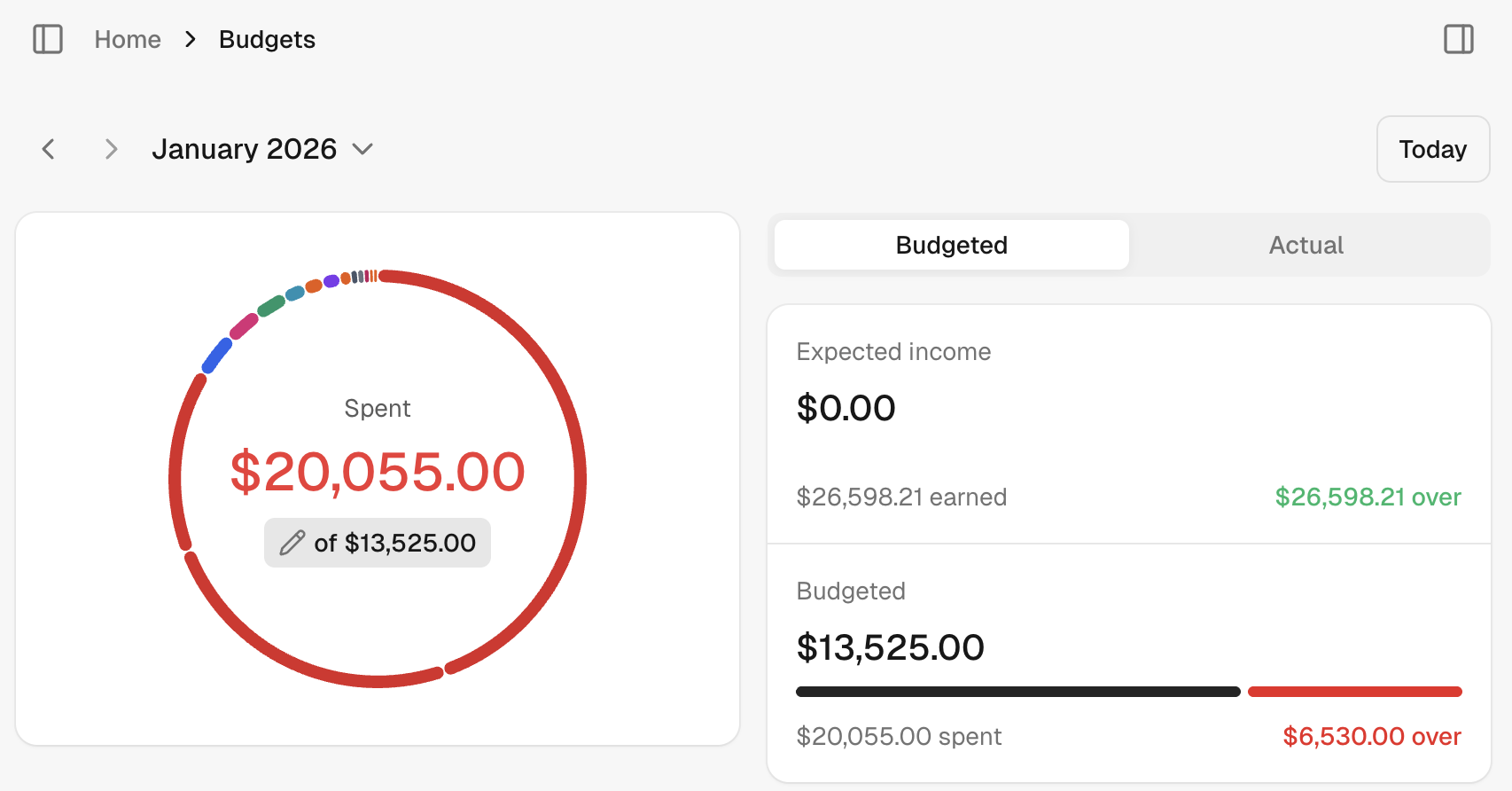
When you create a budget, you assign a spending limit to a category. As you spend money in that category, Sure tracks your progress and shows you:- Amount spent so far this month
- Amount remaining in your budget
- Status indicators showing if you’re on track, near your limit, or over budget
Setting Up Category Budgets
Each category can have its own budget. For example, you might set:- Food & Dining: $500/month
- Entertainment: $200/month
- Transportation: $300/month
Subcategories and Shared Budgets
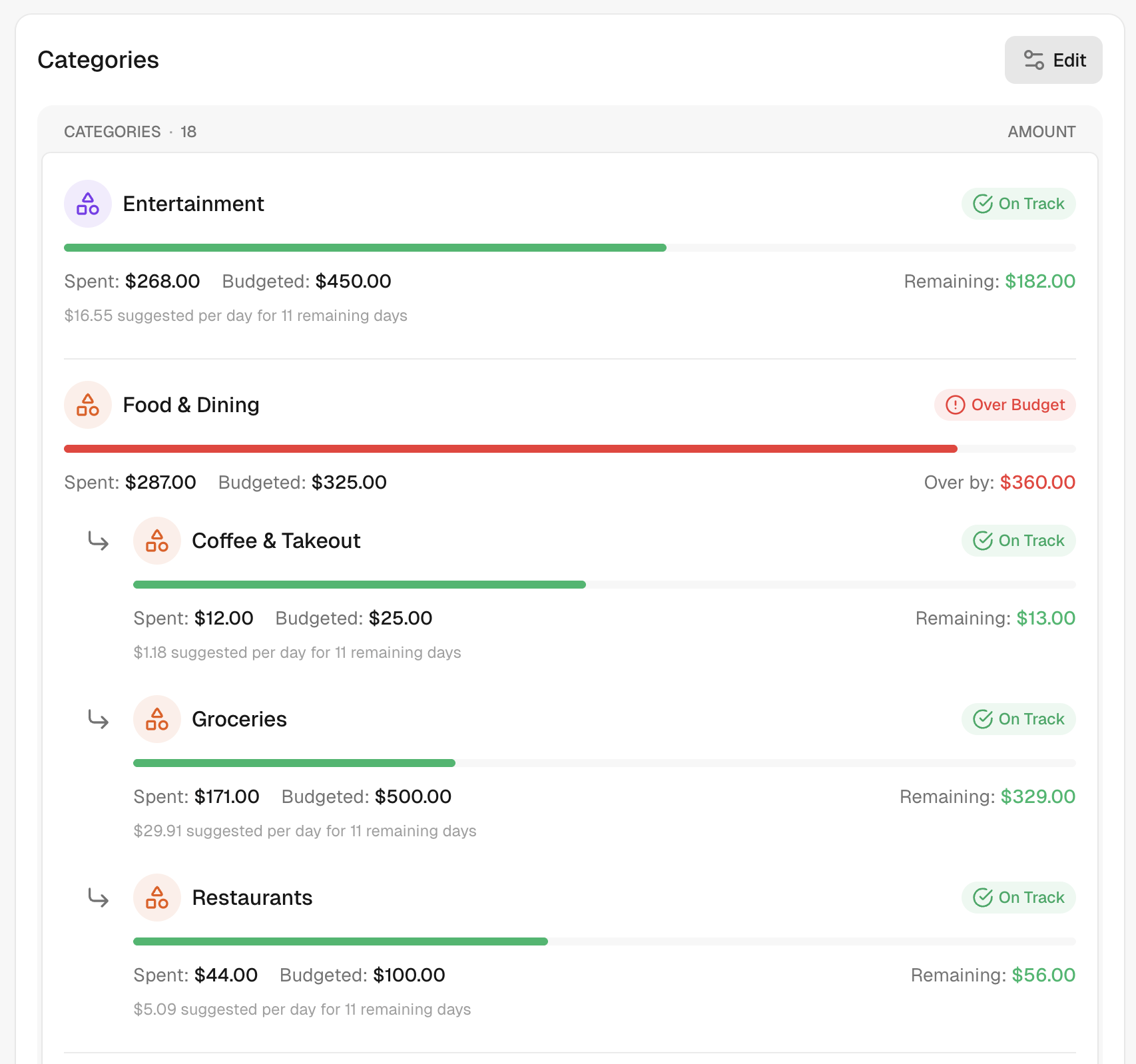
You can organize your spending further with subcategories. For example, “Food & Dining” might include:- Coffee & Takeout
- Groceries
- Restaurants
Individual Budgets
Give each subcategory its own limit. This works well when you want strict control over specific types of spending.Shared Budgets
Leave a subcategory’s budget empty to share the parent category’s budget. This is great when you want flexibility across related expenses. Example: Set “Food & Dining” to $500, but leave the subcategories without individual limits. Now all your food spending draws from the same $500 pool, whether you’re buying groceries or eating out. When a subcategory shares its parent’s budget, you’ll see a “(shared)” label next to the budget amount, making it clear which subcategories are drawing from the shared pool.Mixed Approach
Combine both methods. Set a fixed budget for some subcategories while others share the remaining amount. Example:- Food & Dining: $500 total
- Restaurants: $100 (fixed limit)
- Groceries and Coffee share the remaining $400
- Restaurants has $100 remaining ($100 budget - $0 spent)
- Groceries and Coffee share $350 remaining ($400 shared pool - $50 spent between them)
- The parent Food & Dining shows the total remaining across all subcategories
Status Indicators
Sure uses color-coded badges to show your budget status at a glance:- On Track (green) - You’re within budget and pacing well
- Near Limit (yellow) - Getting close to your limit
- Over Budget (red) - You’ve exceeded your budget
Tips for Effective Budgeting
- Start simple - Begin with just a few major categories before adding detail
- Review monthly - Check your budgets at the end of each month and adjust as needed
- Use shared budgets for categories where you want flexibility between subcategories
- Use individual limits when you need strict control over specific spending